The simple answer: browser bookmarks don't work at scale. A bookmark manager fixes that.
You save links constantly. Articles you might read. Tools you might use. References you might need. Documentation you'll forget. Design inspiration you'll want again. Code snippets you'll search for. Your browser has a star icon for saving all of this.
Then you try to find something you saved.
You search your bookmarks for "React state management." No results. You browse through folders hoping recognition jogs your memory. You give up and Google for it again. Find a worse version. Use that instead. Your saved research is invisible because browser bookmarks break at scale.
A bookmark manager is a tool built specifically for saving and finding links. Not storing them in an afterthought feature of a browser. Actually retrieving them when you need them.
Here's what that means, why it matters, and whether you actually need one.
What Is a Bookmark Manager?
A bookmark manager is software designed to capture, organize, search, and retrieve bookmarks — links you've decided are worth keeping.
That's the simple definition. Here's what it actually does:
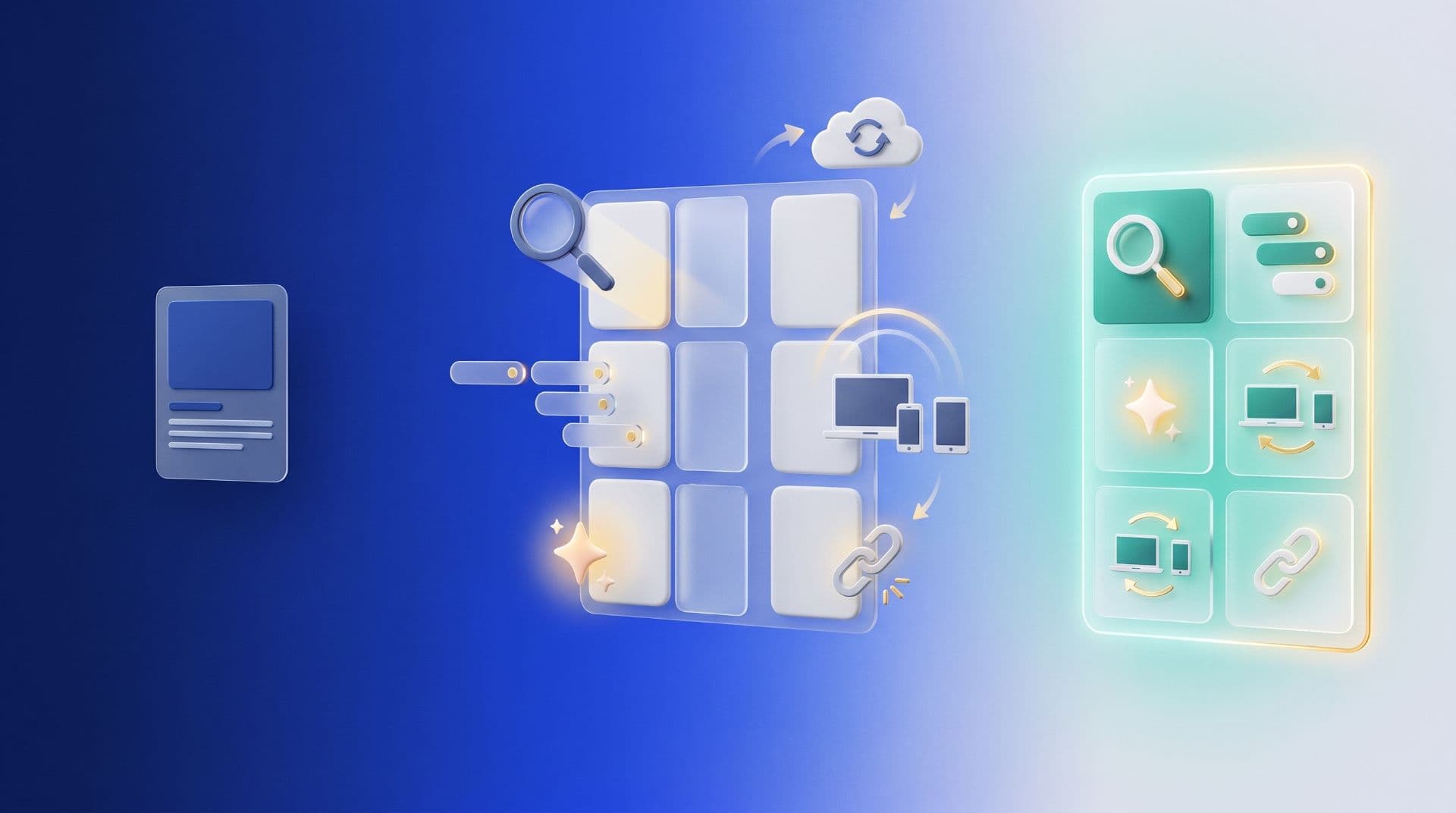
Captures links with one click. Browser extension or share button integration. You see something useful, click save, it's captured with metadata (title, description, thumbnail).
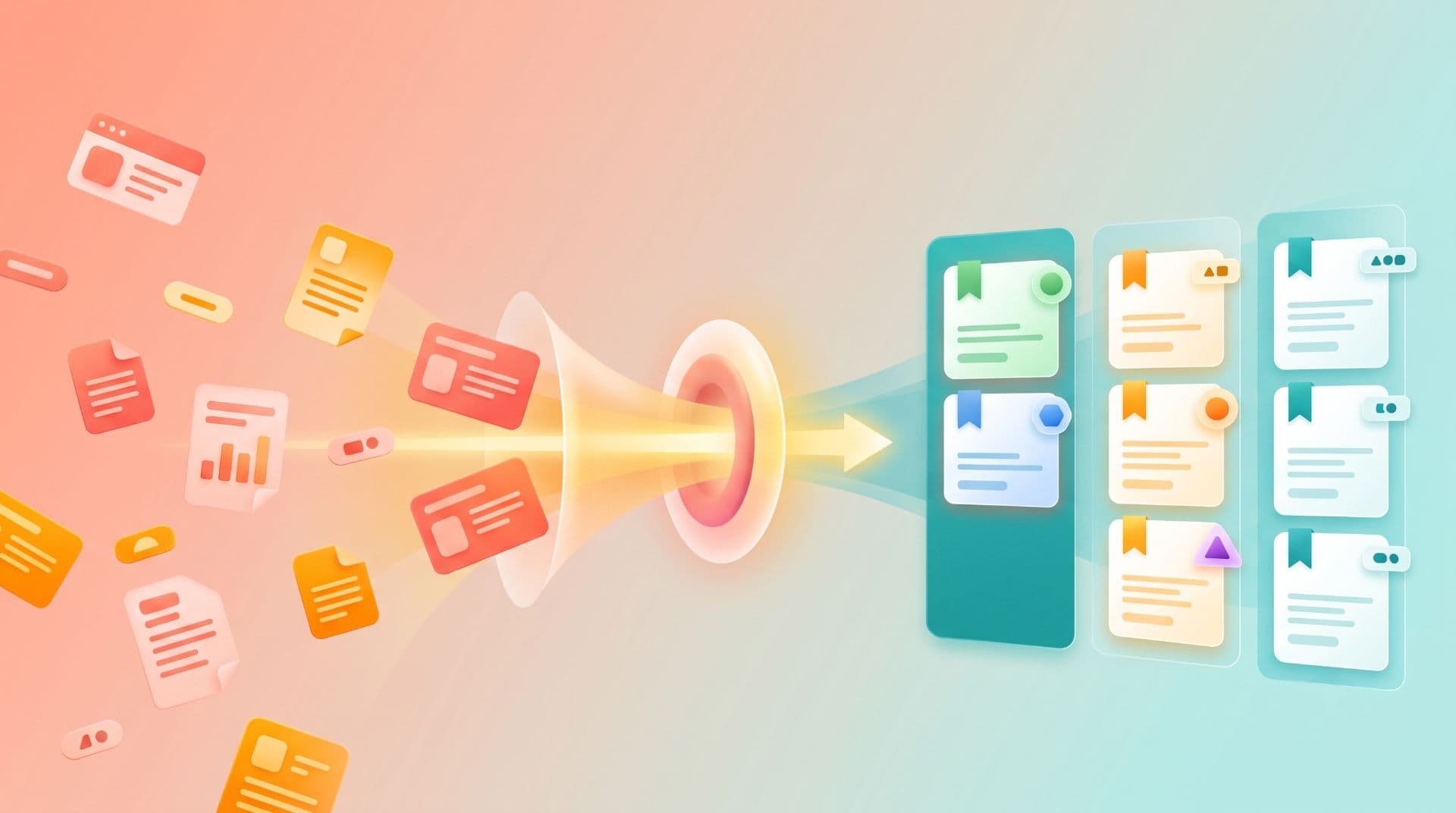
Organizes automatically. AI tags detect topics. You manually organize into collections. Tags cut across collections. The organization maintains itself instead of requiring constant manual work.
Searches everything. Not just titles. Descriptions. Tags. Notes. Page content. You search by any fragment of memory. "React state management" finds articles even if the title says something completely different.
Keeps bookmarks accessible everywhere. Same library on desktop, phone, tablet. Same library in Chrome, Safari, Firefox. You're not rebuilding your collection every time you switch devices or browsers.
Makes bookmarks retrievable again. That's the core promise. You save something and can actually find it later. Simple concept. Browser bookmarks fail at it. A bookmark manager succeeds.
Browser Bookmarks vs. Bookmark Manager: What's the Difference?
Browser bookmarks come free with every browser. They're built in. You don't need to install anything.
They also break the moment you save more than a few dozen links.
Browser Bookmarks: Free But Broken at Scale
What they do:
What they don't do:
When they work:
When they fail:
Bookmark Managers: Built for Real-World Use
What they do:
What they cost:
When you need them:
Why You Probably Need a Bookmark Manager
The honest answer: most people do. Here's who definitely does:
Researchers
Academic, journalistic, or competitive research. You're gathering sources across weeks or months. Browser bookmarks become unusable. A bookmark manager is infrastructure.
Developers
Saving documentation, code snippets, GitHub repositories, Stack Overflow solutions. Development requires references from dozens of sources. Bookmark managers make reference finding reliable instead of Googling again.
Content Creators
Writers gathering research. Designers saving inspiration. Marketers tracking competitors. Podcasters finding clips. Everything needs to be findable months later when the actual project starts.
Multi-Browser Workers
You use Chrome at work, Safari at home, Firefox occasionally. Your bookmarks scatter across three incompatible libraries. A bookmark manager unifies them.
Information Hoarders
If you save more than 100 links per year, browser bookmarks will fail you. It's not about discipline or organization. It's mathematics. The retrieval rate drops exponentially as volume grows.
Anyone With a Long-Term Memory Problem
You save something intending to reference it later. You forget where you saved it. You forget what you titled it. You can't find it without perfect recall. A bookmark manager lets you search by any fragment and actually retrieve what you need.
How a Bookmark Manager Changes Your Workflow
Before: Save something, hope you find it later, usually don't.
After: Save something, search for it by any fragment of memory, find it instantly with context intact.
The shift is fundamental. It changes your relationship with the web from passive consumption to active curation.
Week 1: Import and Discovery
You import your existing browser bookmarks. Everything transfers — folders become collections, URLs and titles preserve exactly. You start saving new links with the browser extension. Each one appears as a visual card instead of a text entry. You notice you're actually seeing what you saved instead of just storing it.
Week 2: Search That Works
You need something you bookmarked six months ago. Browser bookmarks fail you. You try the bookmark manager's search instead. Type two words. It appears in two seconds. You realize search that works changes everything about how useful bookmarks are.
Week 3: Multi-Device Access
You're on your phone. You need a bookmark you saved on your desktop. It's there. Same library, same search, same organization. You stop thinking about "which device did I save this on" because the answer is always "all of them."
Month 2: Invisible Organization
You've saved 400 bookmarks. You can find any of them in under 30 seconds. Tags organize automatically. Collections keep contexts separate. The system maintains itself. You stop worrying about bookmark organization because it happens in the background.
Month 3: The Moment It Clicks
You need research you saved months ago for a completely different project. You search the bookmark manager. Find it instantly. Reference it. Solve the problem. Realize that half your research time is eliminated because information you've already gathered is actually accessible. The bookmark manager has become infrastructure instead of a tool.
What a Good Bookmark Manager Needs
Not all bookmark managers are equal. Here's what separates good ones from bad ones:
Must-Have Features
One-click saving. Browser extension or share sheet integration. If saving requires more than two seconds of work, you stop using the tool. Friction kills habits.
Search that works. Full-text indexing across titles, descriptions, tags, and notes. You search by concept, not exact title. "React state management" finds relevant articles even if the title says something different.
Visual organization. Thumbnails instead of text lists. Your brain recognizes images 60,000 times faster than text. Visual scanning is essential at scale.
Cross-browser access. Works in Chrome, Safari, Firefox, Edge. You're not locked into one browser ecosystem.
Cross-device sync. Same library on desktop, phone, tablet. Real-time sync so changes appear everywhere instantly.
Mobile apps. Native iOS and Android apps. You don't just sync — you actually use bookmarks on mobile without opening a browser.
Nice-to-Have Features
AI auto-tagging. Tags are suggested automatically based on content. You accept, edit, or ignore. Saves time compared to manual tagging.
Collections. Group bookmarks by project or context. Collections provide structural organization. Tags provide cross-cutting categorization. Both together are powerful.
Trash recovery. Delete something accidentally, recover it from trash within 30 days. Protects against human error.
Export functionality. Download your bookmarks as HTML, JSON, or CSV. Protects against vendor lock-in. You can always move to another tool.
Sharing. Create public collections you can share with others. Collaborate on research or curate reading lists.
Frequently Asked Questions
Do I really need a bookmark manager if I only save a few links?
No. If you save fewer than 50 bookmarks total and access them occasionally, browser bookmarks work fine. Browser bookmarks don't break until volume reaches 100+.
But even light savers often find that switching to a bookmark manager increases usage. When finding bookmarks is actually reliable, you save more aggressively. You trust the system more.
Can't I just use browser history instead of bookmarks?
History is temporary. Most browsers clear history after 90 days. Bookmarks are permanent declarations: "I want to keep this." History answers "what was I looking at?" Bookmarks answer "what did I decide to keep?"
History is for browsing. Bookmarks are for curation. They serve different purposes.
Is a bookmark manager the same as a read-later app like Pocket?
No. Read-later apps are designed for temporary storage. You save articles, read them this week, archive them. They're for inbox-zero workflows.
Bookmark managers are for permanent storage. You save links to reference indefinitely. They're for building long-term libraries.
Use both: Pocket for articles you'll read this week, a bookmark manager for everything you want to keep permanently.
What's the difference between tags and collections?
Collections group related bookmarks (like folders). Tags categorize across collections (like labels). A bookmark can live in one collection but carry multiple tags.
Collections provide context boundaries. Tags provide cross-cutting organization. They complement each other rather than competing.
Example: A client project bookmark lives in the "Client X" collection and carries tags
#design, #branding, and #deadline-sensitive. Find it via collection or any of the tags.Can I share bookmarks with my team?
Most modern bookmark managers support sharing. Create a collection, make it public, get a shareable URL, send it to your team. They view it without creating an account.
Some tools support collaborative collections where team members add bookmarks to shared libraries.
Are bookmarks secure in a bookmark manager?
Good bookmark managers encrypt bookmarks in transit (HTTPS) and at rest (server-side). Markify encrypts end-to-end — bookmarks are encrypted on your device before they leave it. The server stores encrypted data it can't decrypt.
Always check the privacy policy before committing bookmarks to a tool. Privacy policies should explain what data is collected, whether it's encrypted, and whether it's shared or sold.
What if the bookmark manager shuts down?
Good bookmark managers let you export your bookmarks as HTML, JSON, or CSV. The export is standard format compatible with other tools. Your data isn't locked in proprietary format.
Always check whether a tool supports export before relying on it. Export your bookmarks periodically as a backup.
Do I need a bookmark manager if I only use one browser?
Maybe not today. But your workflow will change. You'll get a work laptop with different OS or browser. You'll switch jobs. You'll want mobile access. The moment your workflow extends beyond a single browser, browser bookmarks fragment.
Cross-browser support isn't about today. It's about not rebuilding your bookmark library when your situation changes tomorrow.
How long does it take to switch to a bookmark manager?
Five minutes. Import your browser bookmarks (60 seconds). Install the extension (30 seconds). Start saving (instant). You're using it immediately. There's no complex onboarding or setup required.
Do bookmark managers slow down my browser?
No. Lightweight bookmark managers only activate when you click them. They don't run background scripts on every page or monitor browsing. Markify uses under 30MB memory and only activates when you interact with it.
Check your browser's task manager to verify extension memory usage. Good extensions are invisible to performance.
The Moment You Realize You Need One
Here's the scenario that converts people: you're searching for something you know you saved. Browser bookmarks fail you. You Google instead. You find a worse version. You use that. Later, you realize you had better information already but couldn't access it.
That moment. That's when you understand why a bookmark manager matters.
You're not just saving bookmarks better. You're making information you've already gathered actually retrievable. You're turning saved links from clutter into infrastructure.
Markify does that. One-click save. Visual organization. Search that finds what you're looking for. Cross-device access. Works across every browser you use.
Start free. Import your existing bookmarks. Try it for a week. After you realize search that actually works changes your productivity, you'll never go back to relying on browser bookmarks alone.
Try Markify free →
Thanks for reading!
Read more articles